Most Power BI teams that ask us about Fabric aren't trying to build a data platform. They want to stop copying the same Power Query logic into every report, get past the refresh limits of Pro, and do it without a large new monthly bill. This page sets out the architecture we start from for that team, the decisions that keep the cost down, and the risks to plan for.
It's one of our scenario pages. It applies the defaults in our Fabric architecture guide to one common situation, and says where this scenario moves away from them.
Fabric changes every month. Every statement here links to the Microsoft Learn page behind it, and we recheck them each quarter. Treat this as a starting architecture to discuss, not a capacity quote: the right capacity size depends on your models and how people use them, and only measuring tells you that.
Who this suits
- One BI team, or a few analysts, who build and own the reports.
- Everyone already has a Power BI Pro licence, and the report audience runs from tens to a few hundred people.
- The team knows Power Query and DAX well, but not Spark, Python or T-SQL pipelines.
- The business wants better reporting, not a new platform team.
If you have thousands of report viewers, a dedicated data engineering team, or regulated data that needs private networking, this isn't your starting point. Our architecture guide covers those decisions.
Where teams usually start
The starting point is nearly always the same: a set of import models, each built in Power BI Desktop with its own copy of the queries. The same customer table is cleaned in five different files, in five slightly different ways. On shared capacity, each model is limited to 1 GB, eight scheduled refreshes a day and two hours per refresh. Large or slow sources run into those limits first, and every fix lives in someone's Desktop file.
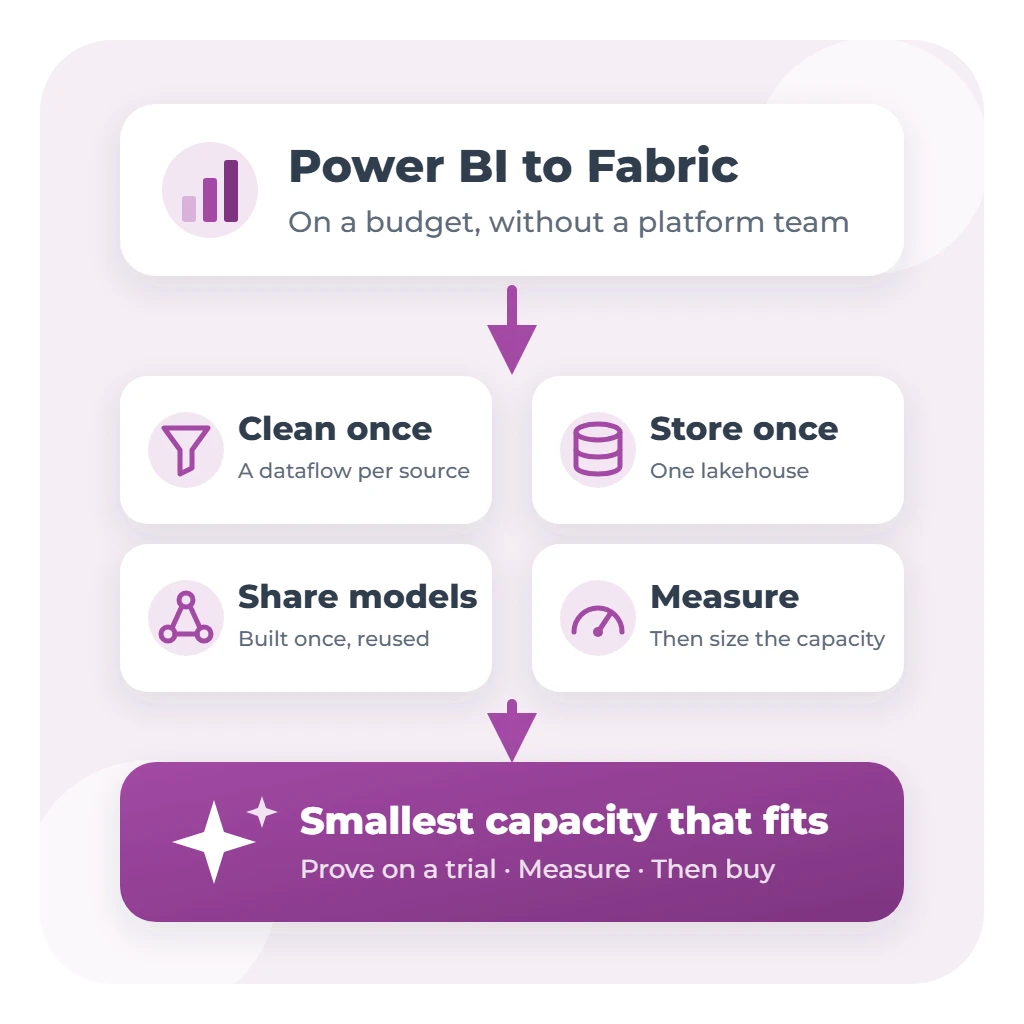
The goal is to clean each source once, store it once, and build every report from a small number of shared models, while keeping the cost close to what the team pays today.
The architecture
Text version of this diagram
- Sources: business apps (usually through cloud APIs), Excel and CSV files, and databases reached through an on-premises data gateway.
- Dataflow Gen2 loads and cleans each source with Power Query, once.
- A lakehouse stores the clean tables, once.
- Shared semantic models in Import mode read the lakehouse.
- Thin reports are built on the shared models.
- Viewers open the reports through a Power BI app. Below F64, every viewer needs a Pro or PPU licence.
- All of this runs in development, test and production workspaces on one small F capacity, released with deployment pipelines and watched in the Capacity Metrics app.
Nothing here needs a new skill set. Dataflow Gen2 is Power Query, so the team's existing queries move across largely as they are, and the reports and models are still Power BI. What changes is where the work happens: transformation moves out of each Desktop file into one dataflow per source, and the cleaned tables live in a lakehouse that every model can read.
The decisions that keep it affordable
Six decisions decide what this costs. Each one follows the same pattern as the guide: our default for this scenario, when to move away from it, and what it costs you.
1. Capacity size
- Our default
- Prove the design on a Fabric trial, then buy the smallest F SKU that holds your measured peaks on pay-as-you-go. Reserve it for a year only once a few months of usage are stable. Microsoft's own advice is the same: measure on a trial or pay-as-you-go capacity before buying a reservation, and start small.
- Move away when
- The usage pattern is already well known, for example when you're replacing an existing capacity, or a reservation discount makes the risk worth it from day one.
- What it costs
- A trial lasts 60 days and doesn't include every feature, so check what you're testing is in it. When a trial ends, its workspaces go back to Pro and the lakehouse and dataflows stop working. Their content is kept for seven days, and moving the workspaces to a paid capacity in that time brings it back. A reservation is paid whether you use it or not, and it doesn't cover OneLake storage.
There's a newer option to watch. With on-demand billing, an F0 capacity has no provisioned compute and no upfront cost: each operation is billed as it runs, with a spend limit for each category of work that stops new jobs once it's reached, though it isn't a hard cap on the bill. Microsoft suggests it after a trial, while you don't yet know your requirements. It's in preview, so we don't put production reporting on it yet, and each type of operation is billed at its own multiplier of the pay-as-you-go rate, so compare the meters with a small F SKU before choosing it.
See what Microsoft Fabric costs in Australia for current AUD prices by capacity size, and the guide's capacity and licensing decision for the wider picture.
Microsoft Learn: Evaluate and optimise your Fabric capacity · Fabric trial capacity · Save costs with Fabric capacity reservations · On-demand billing (preview)
2. Licensing
- Our default
- Keep Power BI Pro for everyone. Below F64, every report viewer needs a Pro or Premium Per User (PPU) licence anyway, so a small capacity adds to what you pay for Pro rather than replacing it.
- Move away when
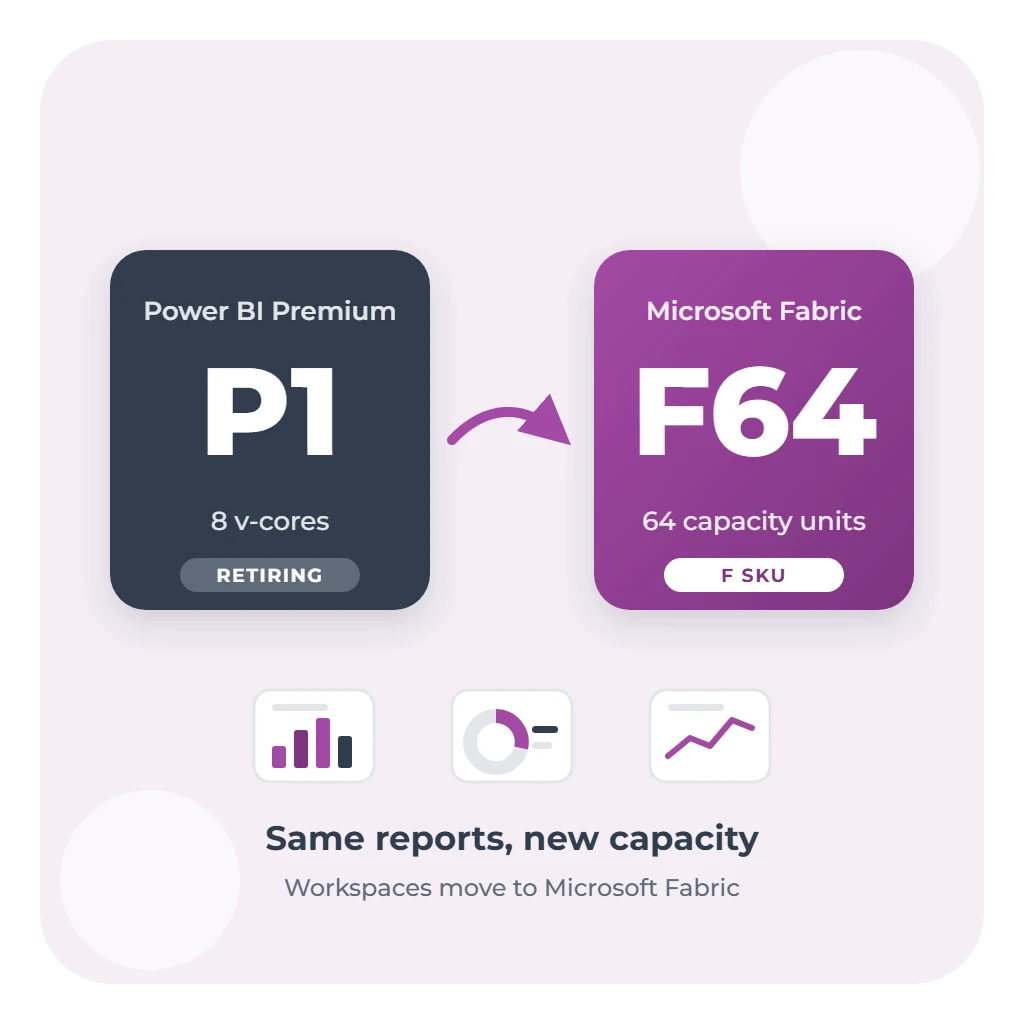
- The number of viewers grows to the point where F64, which lets viewers with a free licence read content, costs less than Pro for all of them. Run that sum with your own numbers.
- What it costs
- PPU looks like a cheaper middle step, but it doesn't provision a Fabric capacity, so it can't run dataflows into a lakehouse. It's a Power BI licence, not a Fabric one.
Our Power BI licensing calculator compares Pro, PPU and Fabric capacities for your number of builders and viewers.
Microsoft Learn: Microsoft Fabric licences and capacity
3. Where report queries run
This is the decision most teams don't know they're making. When a semantic model sits on a Fabric capacity, every report view and slicer click is an interactive query that uses that capacity's compute. On a small capacity with a busy audience, report traffic can use more than the data loading does. When a model sits on shared capacity (a Pro workspace), its queries don't use your capacity at all.
- Our default
- Start with everything in workspaces on the capacity, which is the simplest set-up to secure, release and support, and size the capacity with real report usage during the trial, not just the data loads.
- Move away when
- The trial shows report queries, not data loading, are what would push you to a bigger capacity. Then keeping the import models and reports in Pro workspaces, reading from the lakehouse, can keep the capacity small. Microsoft lists moving Power BI workspaces to shared capacity as one way to spread load, as long as viewers have Pro. We still prove the refresh from the lakehouse and its connection set-up in the trial before relying on it.
- What it costs
- Models in Pro workspaces keep Pro's limits: 1 GB per model, eight scheduled refreshes a day and two hours per refresh. Their refreshes still query the lakehouse, which uses the capacity, and you manage two kinds of workspace instead of one.
Microsoft Learn: Fabric operations: interactive and background · Manage high compute usage · Data refresh in Power BI
4. Getting data in
- Our default
- One Dataflow Gen2 per source, writing its clean tables to one lakehouse. The team's Power Query skills carry straight over, and the cleaning logic lives in one place instead of in every model.
- Move away when
- A source is large or slow to transform, where a Copy job or a notebook can often do the same work for less compute. Or the data already sits in cloud storage, where a OneLake shortcut can read it in place without copying it.
- What it costs
- Every dataflow run uses capacity, and in our experience a heavy dataflow is often the biggest item in the Capacity Metrics app. Check it there before adding schedules. Only Delta tables show up in the lakehouse's SQL analytics endpoint, which is what the models read.
The guide's getting data in and lakehouse or warehouse decisions explain the wider choice. For this team, a lakehouse is the right store: nothing in this design needs a warehouse's T-SQL loading.
Microsoft Learn: Choose a data movement strategy · What is a lakehouse in Fabric?
5. Semantic model mode
- Our default
- Import mode, with a few shared models built in Power BI Desktop on the lakehouse's SQL analytics endpoint, and thin reports on top of them. It's the mode the team already knows, and it keeps report queries fast.
- Move away when
- A model is too big or too slow to refresh in Import mode. Direct Lake then reads the lakehouse tables without an import refresh, as long as each table stays within your capacity's guardrails.
- What it costs
- On F2 to F32, Direct Lake's guardrails allow up to 300 million rows per table, and a model of up to 10 GB on disk on F2 to F8, 20 GB on F16 and 40 GB on F32. Past a guardrail, a Direct Lake on SQL model falls back to slower DirectQuery, and a Direct Lake on OneLake model can't be refreshed or queried until the tables are brought back within the limits. Memory per model (3 GB on F2 to F8, 5 GB on F16, 10 GB on F32) isn't a guardrail, but a model that needs more pages data in and out and slows down. Import models keep the old copy in memory while they refresh, so a full refresh needs more than twice the model's size.
See the guide's semantic model mode decision. Since September 2025, Fabric no longer creates a default semantic model for each lakehouse, so you create the shared models deliberately.
Microsoft Learn: Create a Power BI semantic model · Direct Lake overview · Semantic model limits by SKU
6. Pausing the capacity
- Our default
- Don't plan the budget around pausing. Reports are often read in the evening and early morning, and nothing on a paused capacity is available, including the reports.
- Move away when
- The capacity is on pay-as-you-go and its content is genuinely unused for long stretches, such as a development capacity overnight. Pause and resume can be scheduled with Azure runbooks or the API.
- What it costs
- Pausing a reserved capacity saves nothing: the reservation is paid by the hour whether or not it runs. When you pause, any smoothed usage still owed is billed straight away.
Microsoft Learn: Pause and resume your capacity
The other decisions in the guide still apply, at a smaller scale. Releases are the one to set up from the start: put development, test and production workspaces in a deployment pipeline, so a fix to a shared model reaches every report it serves without anyone republishing from Desktop.
Risks to plan for
| Risk | How we handle it |
|---|---|
| A small capacity gets throttled | Fabric smooths usage, then delays interactive queries by 20 seconds once 10 minutes of future capacity is used up, and rejects them past 60 minutes. Run refreshes and dataflows outside business hours where you can, and watch the Capacity Metrics app weekly. Surge protection can reject new background jobs once usage passes a threshold you set, or cap what one workspace can use, leaving room for reports, but those jobs then fail and need rerunning, so it doesn't replace sizing the capacity properly. |
| Models outgrow the capacity | Check model sizes against the SKU limits before migrating, and slim models (unused columns, high-cardinality text) before reaching for a bigger SKU. |
| Two copies during migration | Old and new models run side by side until each report moves. Migrate one subject area at a time, agree a date to switch each report over, and retire the old model the same week so the numbers can't drift apart. |
| The trial ends before you're ready | Buy the paid capacity before day 60. When a trial ends, the lakehouse and dataflows stop working, and their content is kept for only seven days until the workspaces move to a paid capacity. |
| Costs creep up | Set a budget alert in Azure Cost Management on the capacity's resource group, and review the biggest items in the Capacity Metrics app each month. |
Microsoft Learn: The Fabric throttling policy · Surge protection · Fabric Capacity Metrics app
What we'd do first
- List what you have. Every model, its size, its refresh schedule, and which queries are copied across models. This shows which sources to move first.
- Prove it on a trial. Move two or three of the most-used subject areas: one dataflow per source, one lakehouse, one shared model, and the reports that depend on it.
- Measure. Run the real refresh schedules and let real users open the reports for a few weeks, then read the Capacity Metrics app.
- Choose the size, then migrate. Buy the smallest SKU that held the peaks, move the remaining subject areas one at a time, and reserve once usage settles.
Want this worked out for your team?
If your Power BI estate needs tidying before anything moves, start with our Power BI Health Check. If you're ready to plan the move, the Microsoft Fabric Readiness Review gives you a target architecture, a capacity recommendation based on your models, and a staged migration plan. The Fabric Accelerator then takes you from that plan to a working platform.
Frequently asked questions
What's the smallest Fabric capacity a Power BI team can start with?
The smallest is F2. Whether it's enough depends on your data volumes, refresh schedules and how many people use the reports, so prove the design on a trial and size the capacity from the Capacity Metrics app before you buy. See Fabric prices in Australia.
Do our report viewers still need Power BI Pro licences?
Yes, on any capacity below F64. Below F64, every report viewer needs a Pro or PPU licence. At F64 and above, viewers with a free licence and the Viewer role can read Power BI content. Compare the two with our licensing calculator.
Can we pause the capacity at night to save money?
Only a pay-as-you-go capacity saves money when paused, and nothing on it, including reports, is available while it's paused. A reserved capacity is paid whether it runs or not, so pausing it saves nothing.