Part I covered inbound security: who and what can reach your Microsoft Fabric workspaces. This part covers the other direction. Outbound security decides how Fabric reaches data that sits behind a firewall, and where the data in a workspace is allowed to go. The second question is the one auditors mean when they ask about data exfiltration.
Outbound controls work alongside identity, not instead of it. Conditional Access decides who can sign in, and from where. Outbound access protection decides which destinations a workspace can send data to, even when the person running the pipeline or notebook is fully authorised.
Reaching data behind a firewall
Most organisations keep at least some sources off the public internet: an Azure SQL database with public access turned off, a storage account behind a firewall, or a database in their own data centre. Fabric has four building blocks for reaching them without opening them up.
Workspace identity
A workspace identity is a service principal that Fabric creates and manages for a workspace. Connections can authenticate with it, so nobody has to store a password, secret or certificate in a pipeline or notebook. You grant it access to anything that supports Microsoft Entra authentication, just as you would for a person. It can be created in any workspace except My workspace.
Trusted workspace access
With a workspace identity, a workspace can read from Azure Data Lake Storage and Blob Storage accounts that block public access. The storage account lets in specific workspaces through resource instance rules, which you create with an ARM template or PowerShell rather than in the Azure portal.
- It needs a purchased Fabric capacity (an F SKU). It doesn't work on trial capacities, and items that rely on it stop working if the workspace moves to one.
- Use resource instance rules rather than the storage account's "trusted service" exception. That exception lets in every workspace with an identity in your tenant, and Microsoft doesn't recommend it.
Managed private endpoints
For Spark notebooks, lakehouses and Spark jobs, a workspace admin can create a managed private endpoint to an Azure resource such as Azure SQL Database or a storage account. Fabric runs it in a managed virtual network that belongs to the workspace, so it doesn't appear in your Azure subscription. The owner of the resource approves the request, as with any private endpoint.
- Managed private endpoints need Fabric Data Engineering to be available in both your tenant's home region and the capacity's region.
- OneLake shortcuts can't yet reach Data Lake Storage or Blob Storage through a managed private endpoint. Use trusted workspace access for those.
- With a managed virtual network, Spark no longer uses the pre-warmed starter pools, so a session takes three to five minutes to start instead of seconds.
Data gateways
Pipelines, dataflows, Copy jobs, mirroring and Power BI semantic models reach private sources through a data gateway.
- On-premises data gateway: runs on your own servers and only makes outbound connections, so you don't open any inbound ports. You run, patch and pay for those servers.
- Virtual network data gateway: runs inside your Azure virtual network with no servers to manage. It's billed against your Fabric capacity while it's running.
Controlling where data can go
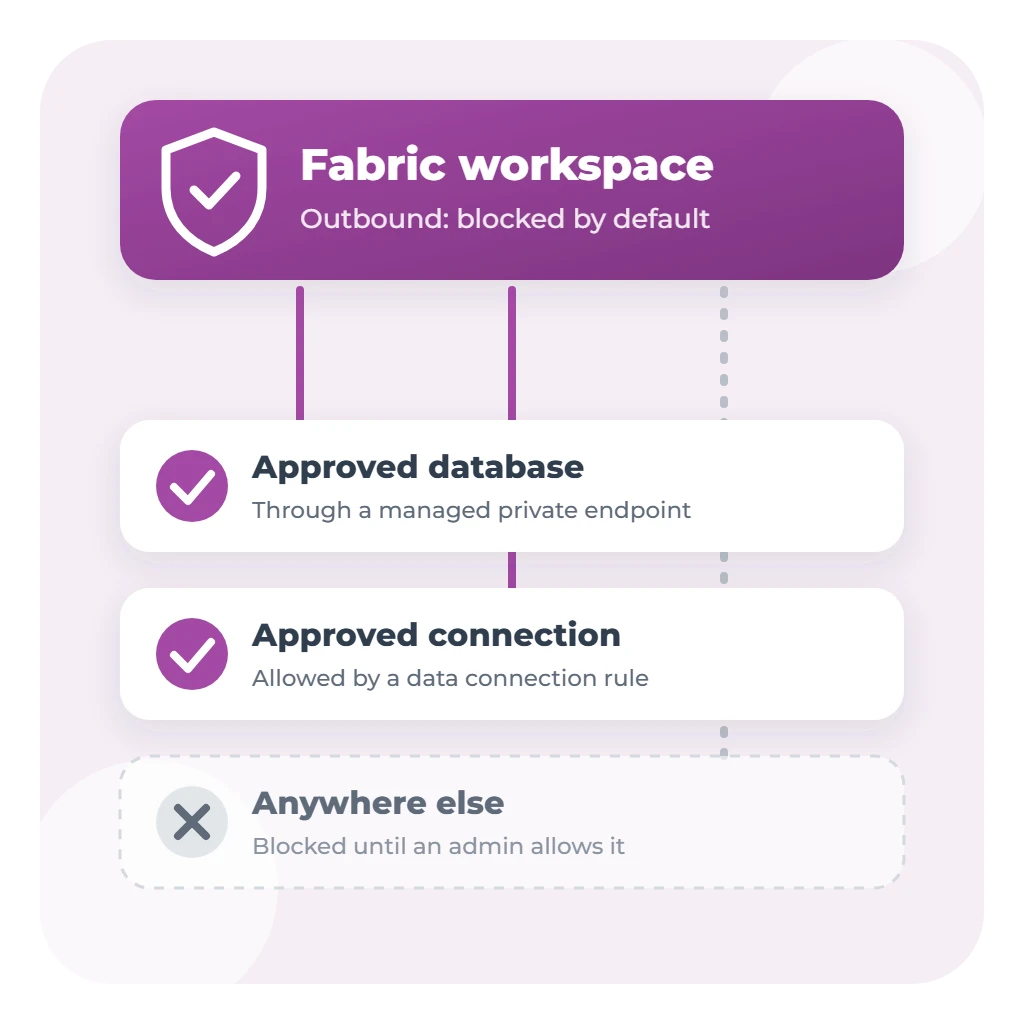
Reaching your sources is half the job. The other half is making sure a workspace can't send data somewhere it shouldn't, by mistake or on purpose. That's what workspace outbound access protection does.
When a workspace admin turns it on, every outbound connection from the workspace is blocked. The admin then builds an allow list, and how depends on the kind of item:
- Managed private endpoints for Spark items (lakehouses, notebooks, Spark job definitions and environments) and OneLake shortcuts. To reach another workspace in the same tenant, that workspace also needs a Private Link service.
- Data connection rules for pipelines, dataflows and Copy jobs, mirrored databases, Power BI semantic models and several Real-Time Intelligence items. A rule allows a type of connection, or specific gateways. Many connection types can be narrowed to particular endpoints, such as one SQL server, or to particular workspaces.
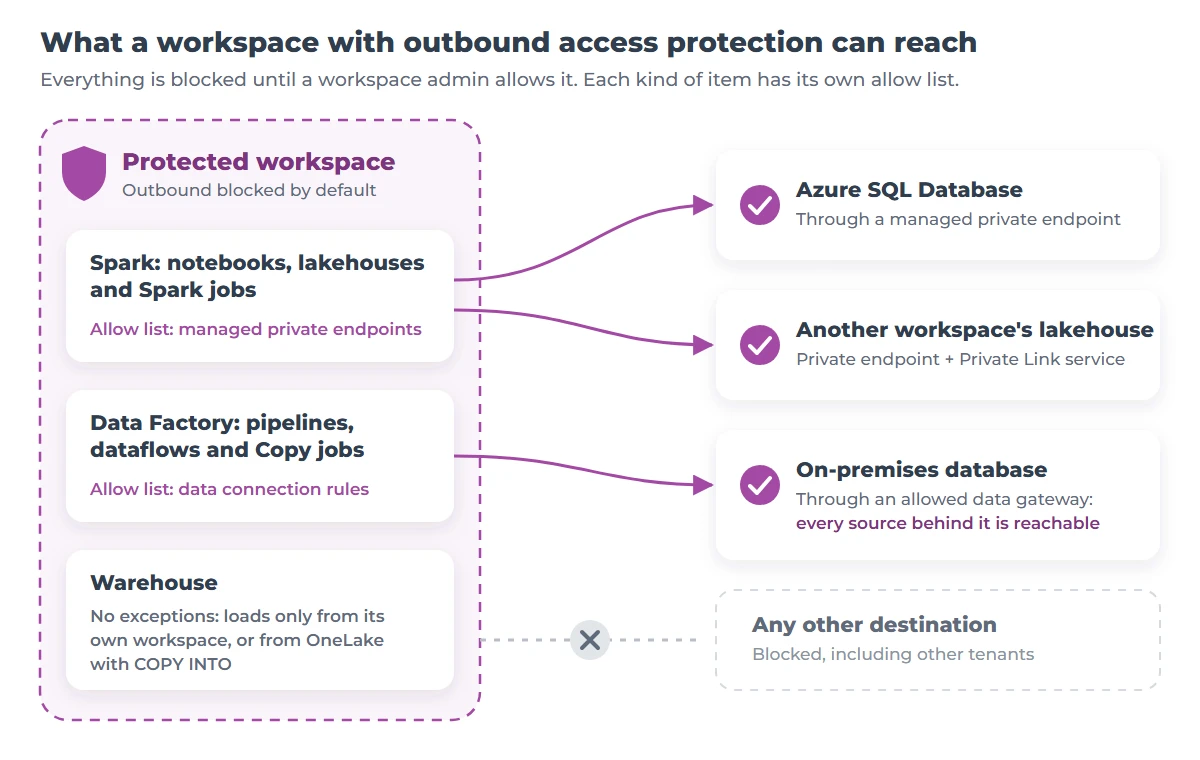
Three details change how you design the allow list:
- Allowing a gateway allows everything behind it. Once a gateway is on the list, the workspace can reach any source that gateway can reach. If that's too broad, give protected workspaces their own gateway.
- Warehouses get no exceptions. With protection on, a warehouse or SQL analytics endpoint can't connect out at all. COPY INTO, OPENROWSET and BULK INSERT only load from the same workspace, apart from COPY INTO from OneLake. If your gold layer is a warehouse, land the data in the workspace first.
- Other tenants are out of reach. Outbound access protection doesn't work with Fabric external data sharing, and an allow list can't include another tenant.
Before you switch it on
Outbound access protection changes how a workspace behaves the moment it takes effect. Check these first:
- Tenant setting. A Fabric administrator has to enable "Configure workspace-level outbound network rules" before any workspace admin can use it. It's off by default.
- Capacity and region. The workspace must be on a purchased F SKU capacity, not a trial or Power BI Premium capacity, in a region where Fabric Data Engineering is available. The Azure subscription needs the
Microsoft.Networkresource provider registered again. - Unsupported items. You can't turn protection on while the workspace holds items that don't support it, and you can't add them afterwards. Check Microsoft's list of supported items against what the workspace contains.
- Git. Protection blocks Git integration until a workspace admin turns on "Allow Git integration". A workspace created by branching out doesn't inherit protection, so switch it on there too.
- The REST API. If you set protection through the API, include the inbound setting in the same request. Otherwise inbound access goes back to its default, allow.
- Private links. If workspace-level or tenant-level private links are on, the portal can't configure data connection rules. Use the REST API instead.
- Timing. The setting can take up to 15 minutes to take effect.
- Preview features. At the time of writing (November 2026), data connection rules are labelled as a preview in the portal, and support for some items is still in preview. Check the status of each item you rely on.
A staged rollout
- Inventory every outbound connection each workspace makes today: data sources, gateways, shortcuts, Git and other workspaces.
- Choose the workspaces that need it. Start with those holding sensitive or regulated data. Workspaces with ordinary business data can usually rely on identity controls.
- Move unsupported items into a separate workspace that won't be protected.
- Test in a non-production workspace first. Turn protection on, build the allow list, and run every pipeline, notebook and refresh.
- Enable it in production, then keep checking. Fabric administrators can list every workspace's network policies with the List Networking Communication Policies admin API, and Fabric logs each operation it blocks, so you can spot a missing rule or an attempt to get around one.
How it fits with Part I
Inbound and outbound protection are separate settings, and you can use either on its own. If you want both on one workspace, note that the portal can't turn on workspace-level private links and outbound access protection together. Configure both through the Set Network Communication Policy API.
For most organisations we suggest the same order as our Microsoft Fabric architecture guide: identity first, with Entra ID, MFA and Conditional Access; then outbound access protection on the workspaces that hold sensitive data; then private links where a policy or regulator requires private network paths. Our local government scenario shows how these settings fit together in one architecture.
Planning outbound controls for Fabric?
Our Microsoft Fabric Readiness Review includes security and governance: we can inventory your connections, decide which workspaces need protection and design the allow list with you. Or contact us to talk it through.